Add feedback you already have, from an export or a spreadsheet, as a .csv, .xlsx or .xls file. About five minutes.
Before you start
You need a .csv, .xlsx or .xls file, up to 5 MB and 5,000 rows, with a heading row and one piece of feedback per row. One column must hold the feedback text. A workbook is read one sheet at a time.
Open the screen
On Sources, select Add a source under the topic.
Under the tiles, select upload a file instead.
Upload the file
Under Upload a file, select Choose a file, or drop the file on the upload area.
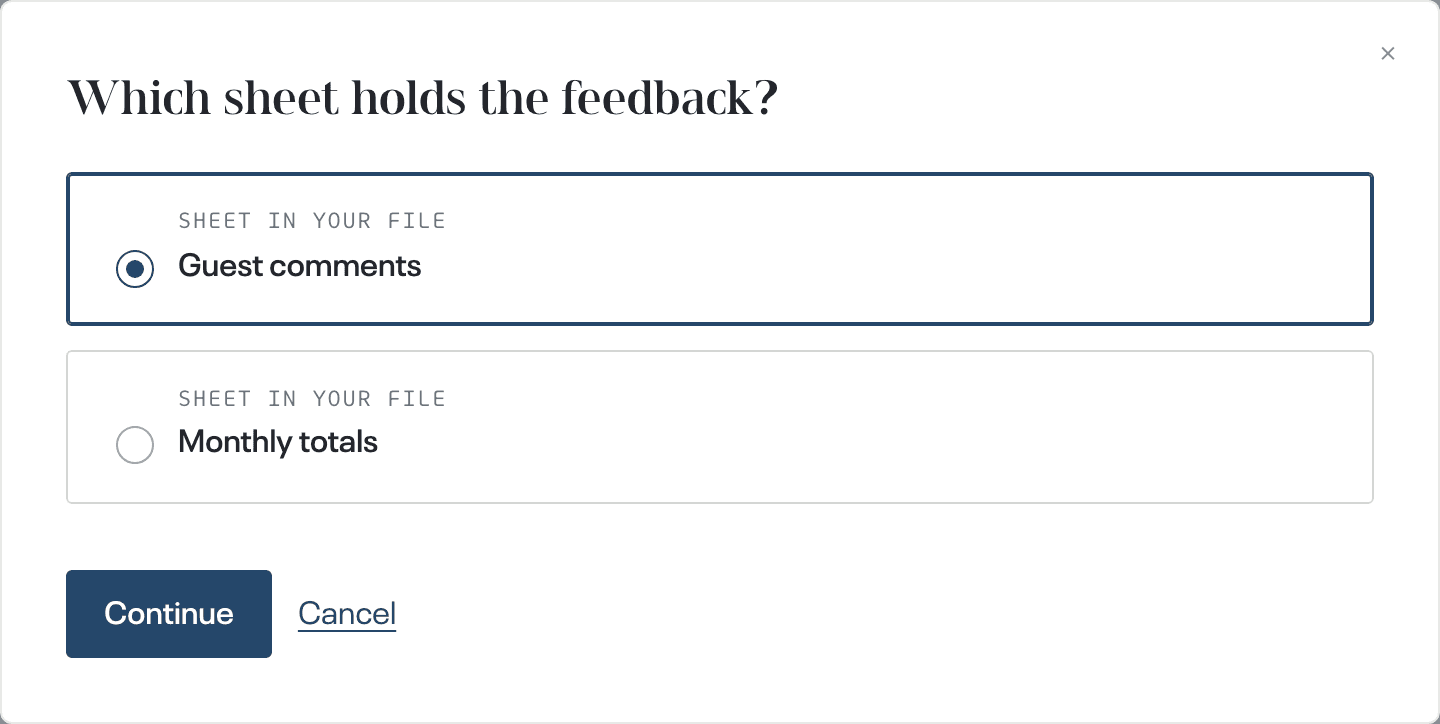
If the file is a workbook with more than one sheet holding data, Which sheet holds the feedback? opens. Select the sheet, then Continue. Only that sheet is imported; to import another sheet, upload the file again and select it instead.
Answer the column question, if asked
If we could not tell which column holds what people wrote, Which column holds what people wrote? opens with every column and a preview of its values. Select the one that holds the feedback, then Continue. This question is skipped when we are sure.
Check and import
On Check and import, check the column chosen for each of the four questions: what people wrote, when it was written, who wrote it, and how it reached you. Each one shows the column heading and a preview of its values. If this file was imported before, a message above the questions says when, and names the topic if it went into another one. Importing it again into the same topic adds the same feedback twice.
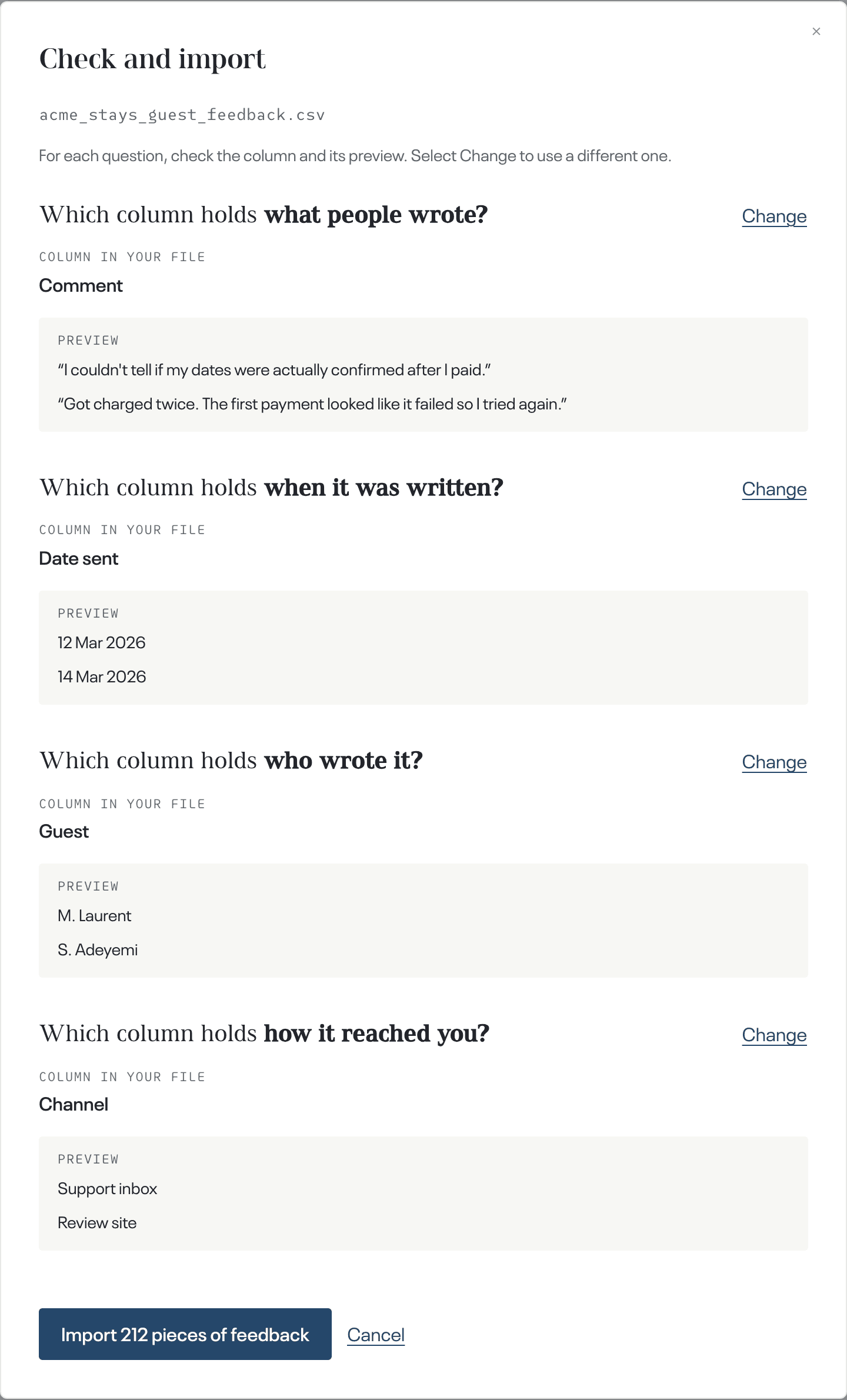
To use a different column for a question, select Change on its row, select a column from the list, then Use this column. For when it was written, who wrote it or how it reached you, you can instead select None of these columns: that feedback imports without it.
Select Import, which carries the number of pieces of feedback it will add.
Importing a file is complete when
- under upload a file instead, a line shows the file name and the number of rows imported;
- on Topics, the topic shows Collecting.
What happens next
The rows are added to the topic's feedback at once, and a cycle of the topic starts. There is nothing to do while you wait.