Deliver each finding as a message in a Slack channel, with its evidence. About five minutes.
Before you start
You need permission to add apps to the Slack workspace, unless echoUX is already connected to it.
Open the screen
On Destinations, select Add a destination under the topic.
Select the Slack tile.
Allow access
Select Connect in the dialog. Slack's permission page opens in its own window.
Check that the right workspace is shown at the top right of Slack's page. To change it, select it there. Then select Allow.
Choose the channel
Under Destination channel, select the channel from the list. A channel is selected in advance, so check the choice before saving.
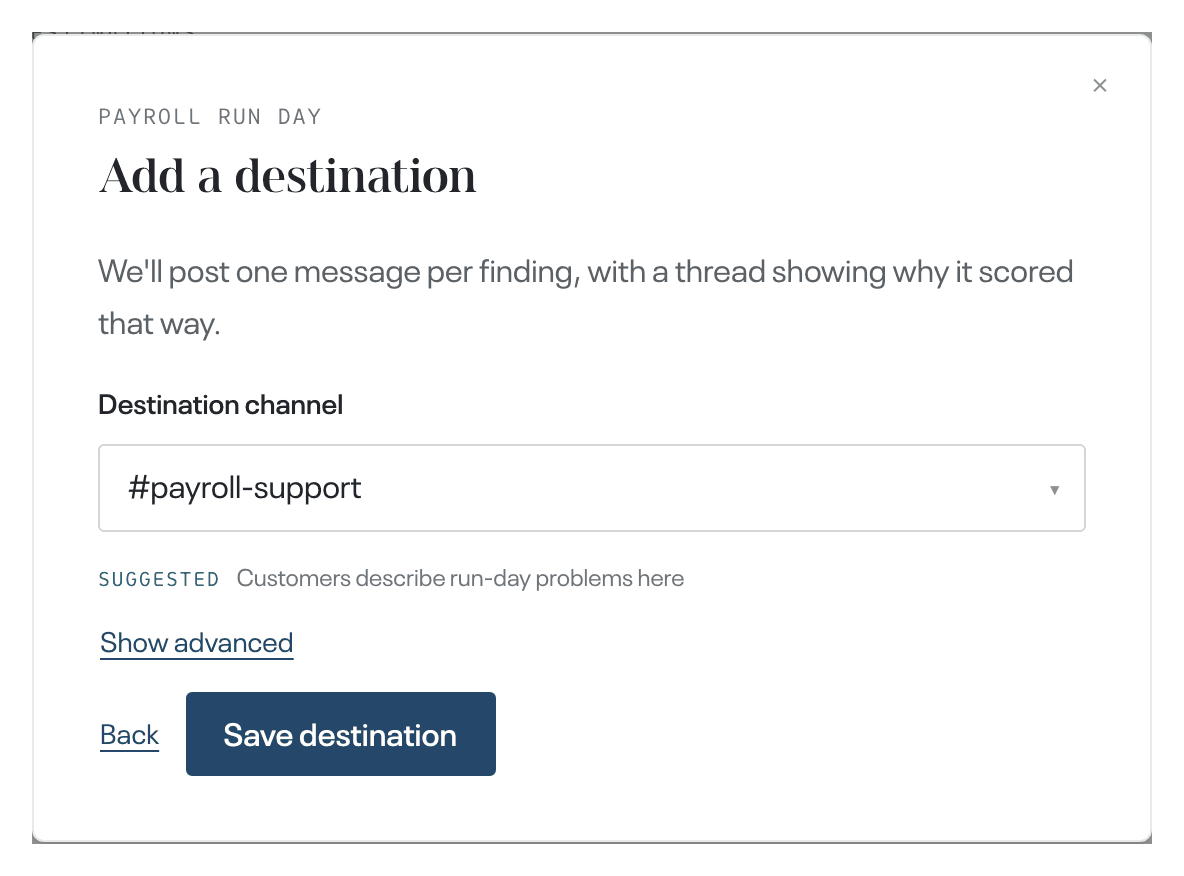
/invite @echoUX. Then select Back and select the Slack tile again to reload the list.Select Save destination.
Check it arrives
Under Destination saved, select Test delivery. The test message is a sample finding titled "Sample artefact, safe to delete".
Select Done (during setup, Continue).
Connecting Slack is complete when
- the test message is in the channel;
- on Destinations, the topic lists Slack with the channel name.
What happens next
For a new topic, deliveries begin when its first cycle produces a finding, usually between several weeks and two months after collection starts. There is nothing to do while you wait.