Connect the AI tool you already use so that it answers from your echoUX findings, and says so when there is no finding on the question. About five minutes.
Before you start
You need:
- an AI tool that can connect to a remote MCP server. An MCP server is an address an AI tool connects to so that it can read from another product, in this case echoUX;
- at least one topic in your echoUX account. With no topic there is nothing for the tool to read, and the connection cannot be finished.
Add the server in your AI tool
In your AI tool, open its settings for connectors, integrations or MCP servers. The name of this setting differs by tool.
Add a server with the address
https://mcp.echoux.ai/mcp.If the tool asks how to sign in, select OAuth, which means signing in through your browser. This connection does not use an API key.
Allow the tool to read echoUX
The tool opens echoUX in your browser. If you are not signed in, the sign-in page opens and says the link will return you to this connection. Enter your email, then open the link in the email you receive.
A page opens whose heading names your tool, for example Connect Claude to echoUX.
Under Topics it may read, select each topic the tool may read. Nothing is selected until you select it, and the button below stays inactive until you select one topic. A topic that is not collecting is listed with (not collecting) after its name and can still be selected.
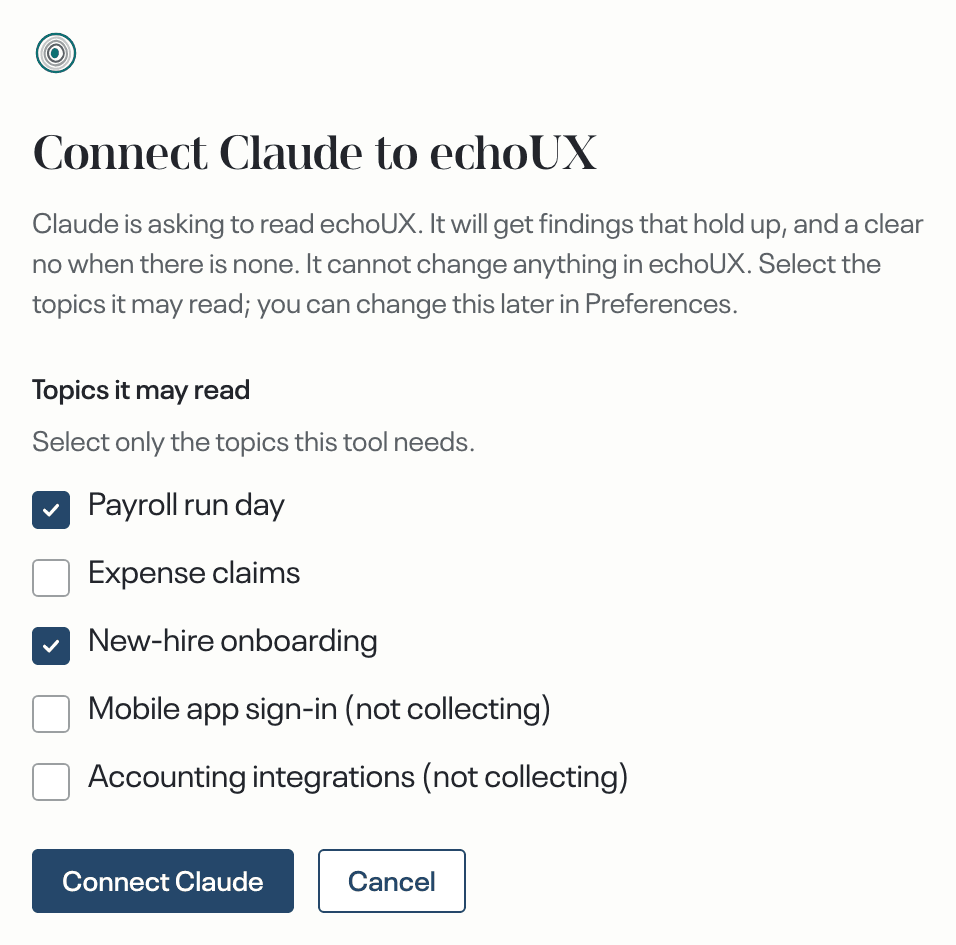
Select the button that carries the tool's name, for example Connect Claude. Your browser returns to the tool. To stop instead, select Cancel.
Check that it worked
Back in the tool, ask it to list your echoUX topics. The answer names the topics you selected, and nothing else.
Ask in plain words. For example:
List my echoUX topics.
Let the tool check claims
A connected tool reads findings. It can also hand echoUX one claim at a time, a roadmap line or a sentence in a brief, and get one of four answers. AI claim checks are off until you switch them on.
Open Preferences, under Account in the nav, then under AI tools find the tool's row and select Change what it may read and do.
Under the heading that names your tool, for example What Claude may do, switch on Check claims, Track assumptions, or both, then select Save changes. The tool's row now names whichever of the two you switched on, followed by its topics.
Back in the tool, ask it to check a claim against one of your topics.
Ask in plain words, one claim at a time. For example:
Check this against my echoUX topic on bookings: travellers who have paid are left unsure whether their stay is confirmed.
Let the tool track assumptions
A connected tool can also stake an assumption: one statement about a topic, tracked once you switch on Track assumptions in the step above. Each time that topic reads new feedback, the assumption is examined again, and your account is told if the answer changes.
Back in the tool, ask it to track an assumption on one of your topics.
Ask in plain words, naming one topic. For example:
Track this assumption on my echoUX topic on bookings: travellers who have paid are left unsure whether their stay is confirmed.
Connecting an AI tool is complete when
- the tool lists the topics you selected, and nothing else;
- on Preferences, under AI tools, the tool is listed with those topics;
- if you switched on Check claims, the tool answers a claim with one of the four words and the findings behind it;
- if you switched on Track assumptions, the tool confirms the assumption is tracked when you ask it to track one.
What happens next
Every admin on the account is told when a tool is connected, and again when one is removed, by email or by the private Slack channel they chose in Preferences. When a tracked assumption's answer changes, a message reaches the people on that topic and whoever staked the assumption, carrying the statement and what it now reads. Every answer except the last names the findings it rests on and quotes them word for word.