Add a topic for another area of your customers' experience, pause or archive one, and see who is notified about a topic and which AI tools read it.
Pausing and archiving both stop a topic, and they differ in what they keep. Pausing is for a while: the topic keeps its place in your plan, and you resume it on the same card. Archiving closes the topic: its history is kept, the topic stops holding a place in your plan, and you can restore it later.
Before you start
To add a topic, or to restore an archived one, you need a free place in your plan. Starter includes one topic and Team includes three. A paused topic keeps its place, and an archived topic does not. On the Team plan, and while the account's payments are up to date, an admin or manager can add a topic beyond those included, for a monthly charge. On a trial, a topic beyond those included cannot be bought.
Add a topic
On Topics, select Add new topic.
Under What area are you interested in?, describe the area, then select Turn this into a topic. The topic is created at this point. If you stop before it, no topic is added and no charge is made.
Review the topic, then connect a source and a destination, as in Set up echoUX.
Pause and resume a topic
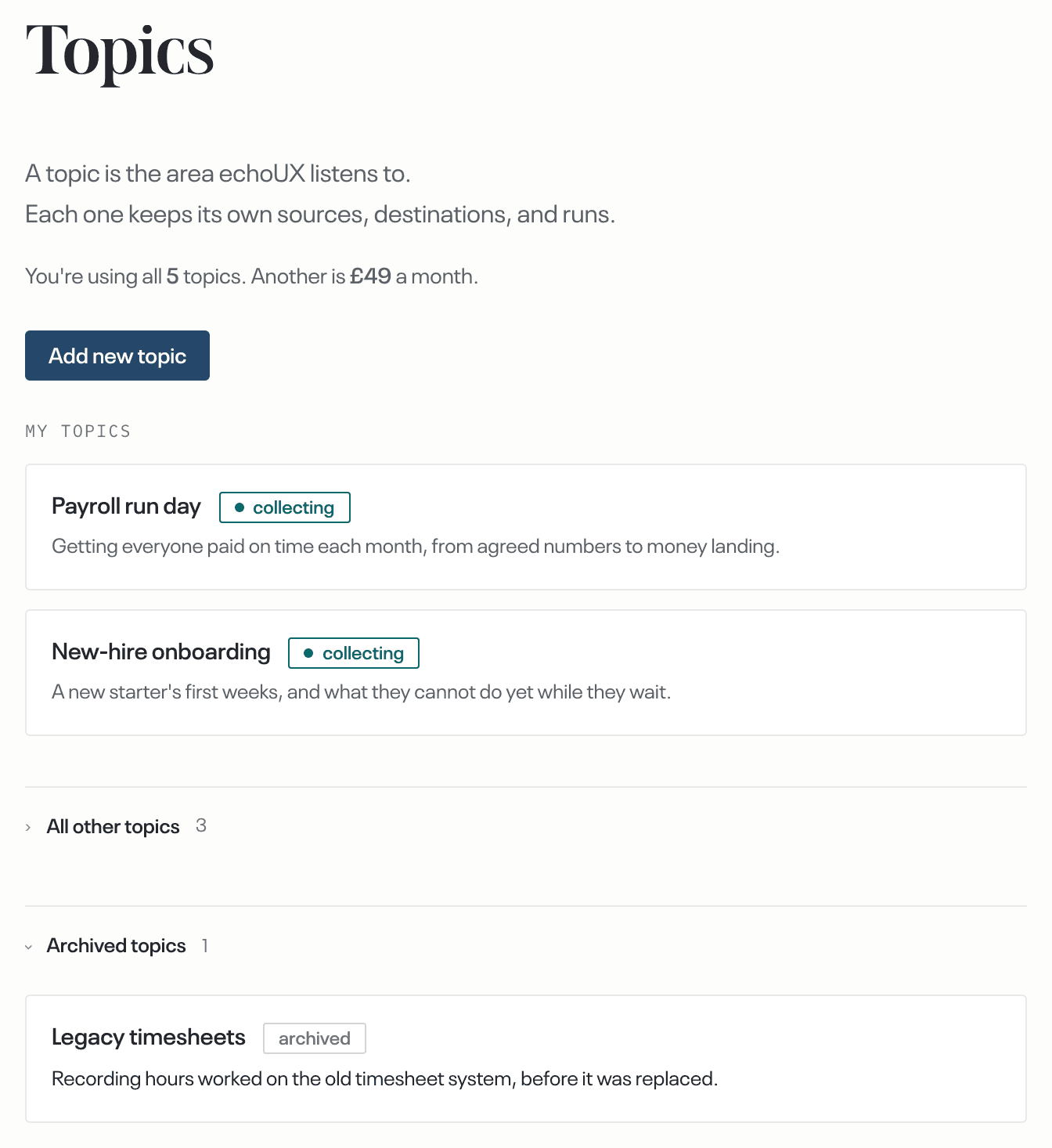
On Topics, select the topic. When you are notified about at least one topic, those are listed first under My topics, and the rest are under All other topics, which you open.
Under Collecting, select Pause collecting. The topic reads paused, and nothing is collected, read or delivered for it. The sources that were collecting are paused with it, and on Sources they read Paused with its topic.
To resume, select Resume collecting on the same card. Only the sources that the pause stopped are resumed. A source that cannot be resumed is named on the card. Resume that source on Sources.
Archive and restore a topic
On the topic's page, under Archive this topic, select Archive this topic, then Archive topic in the dialog. The topic's sources are paused, its definition and everything collected for it are kept, and it moves to Archived topics at the foot of Topics. If the account pays for extra topics, the dialog also says that archiving removes one Additional product area from your bill, and credits you for the rest of the month.
To restore an archived topic, on Topics open Archived topics and select the topic.
Under Archived, select Restore this topic, then Restore topic. The sources archiving paused are resumed, and any that cannot be resumed are named in the dialog. Restoring takes a place in your plan again, and when you cannot take one the card says why instead of showing the button.
See who is notified about a topic
On the topic's page, under Topic notifications, read who is on the topic. These people are notified when a cycle fails, when a source or destination stops working, and with the monthly summary of what was read. To be notified about this topic yourself, or to stop being notified, select Notify me about this topic.
See which AI tools read a topic
On the topic's page, under AI tools reading this topic, read which AI tools read it, who connected each one, and the date each one last read it. To stop one, select Stop reading this topic, then Stop reading. The tool is then no longer listed on this card. If this topic is the only topic the connection reads, the connection is removed.
See which assumptions are tracked on a topic
On the topic's page, under Assumptions, read each statement being tracked, which tool staked it, who staked it, and when it was last examined. To stop one, select Stop tracking this assumption. Turning tracking on for a tool is covered in Connect an AI tool to echoUX · 11.
Each change is complete when
- a new topic is listed on Topics, reading setup incomplete until it has a source and a destination, and collecting once one of its sources is collecting;
- a paused topic reads paused, and on Sources the sources it stopped read Paused with its topic;
- an archived topic is listed under Archived topics, and a restored one is listed with your other topics again.
What happens next
Feedback for a new topic is collected once it has a source that is collecting, whether or not a destination is connected yet. Findings are delivered once the topic also has a destination. The first findings usually take between several weeks and two months, depending on how much feedback arrives.