Set the address you sign in with, choose how notices reach you, choose the topics you are notified about, and manage the AI tools that read on your behalf.
Before you start
Open Preferences, under Account in the nav. The page holds four separate changes: each one below starts at its own step 1, and you can make any one of them on its own.
Change your sign-in email
Select the Sign-in email row. It shows the address you sign in with now, and opens Change sign-in email under it.
In New sign-in email, enter the new address, then select Send confirmation link. A line under the button names the address to open the link at.
At that address, open the email with the subject Confirm your new echoUX email, and select Confirm. Preferences opens and shows Your sign-in email is now updated.
Choose where notices reach you
Under Notify me on, switch Email on or off. With Email off and Slack on with a channel chosen, everything reaches you in Slack. With both off, only the important notices about your account reach you, by email.
In Slack, open the private channel you want your notices in, and type
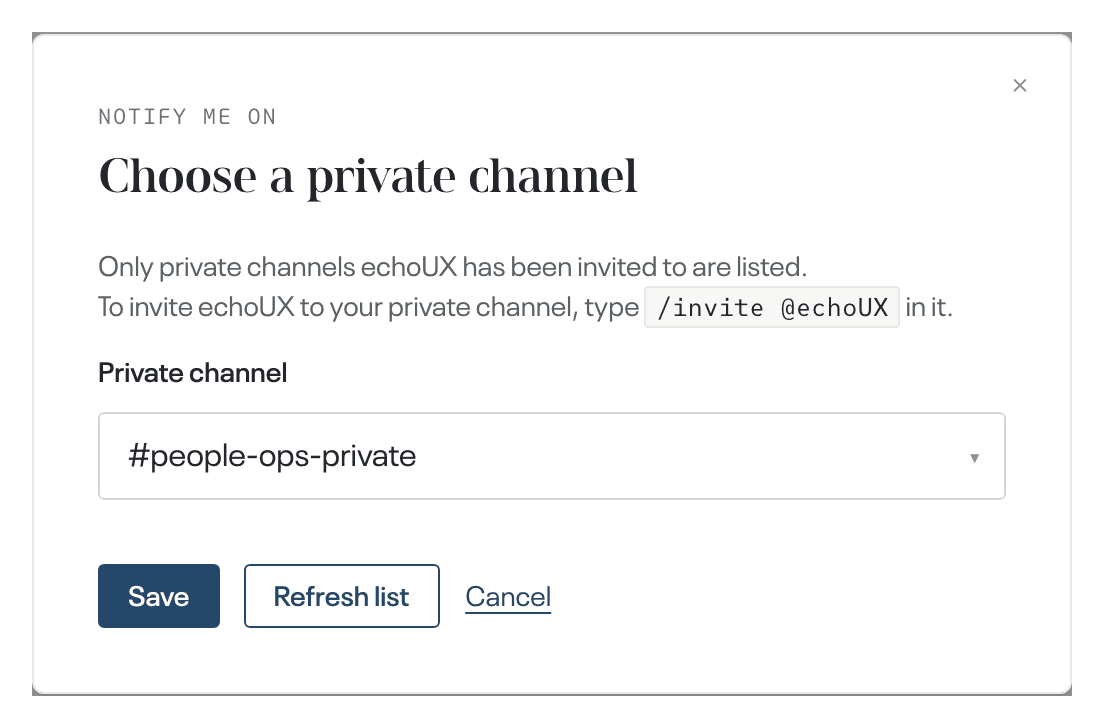
/invite @echoUXin it. Only private channels echoUX has been invited to are offered, and a public channel is never offered.On the Slack row in Preferences, select Connect Slack. A connect dialog opens over the page: select Connect in it. Slack's permission page opens in its own window. When Slack is connected on the account already, the row shows No channel yet instead: select Choose a channel, then go to step 5.
Check that the right workspace is shown on Slack's page, then select Allow. Choose a private channel opens by itself.
Under Private channel, select your channel, then select Save. When your channel is not in the list, select Refresh list. A first message is posted to the channel. To use another channel later, select Change channel on the Slack row.
Choose the topics you are notified about
Under Notify me about, switch a topic on or off. The change is saved at once. With a topic on, you are notified when its first findings are delivered and when something on it needs your attention. A summary of what was read arrives once a month.
Manage your AI tools
Under AI tools, find the tool's row: it names the topics the tool reads, whether it also checks claims, whether it tracks assumptions, the day it was connected, and the day it was last used. To change any of these, select Change what it may read and do, select the topics, switch Check claims and Track assumptions on or off, then select Save changes. A change stays unsaved until you select Save changes, and at least one topic stays selected.
To end the connection, select Remove, then Remove connection. The tool stops being able to read echoUX at once. To connect it again, start from the tool, with the address the card shows:
https://mcp.echoux.ai/mcp.
Each change is complete when
- the Sign-in email row shows the address you confirmed;
- under Notify me on, Email and Slack are set as you chose, and the Slack row names your private channel;
- under Notify me about each topic you want is switched on, and under AI tools each tool's row names the topics you saved and says whether it checks claims and whether it tracks assumptions.
What happens next
Your sign-in email changes when the confirmation link is opened, and not before.