Give a colleague access to your account by email, choose their role, change it later, and remove their access when they leave.
Before you start
You need to be an admin or a manager on the account.
What the three roles decide
Every role can see and change every topic, every source and every destination, and can import a file. The three roles differ only over the people, the plan and the payments. A Member does none of those. A Manager invites people, sets roles, sees the plan and buys capacity, which raises what the account pays. An Admin does all of that, sees the payment card and the invoices, and can close the account.
Being notified about a topic is not permission. Notification decides which findings and notices reach a person, never what that person may change. There is no role that only receives findings.
Invite someone
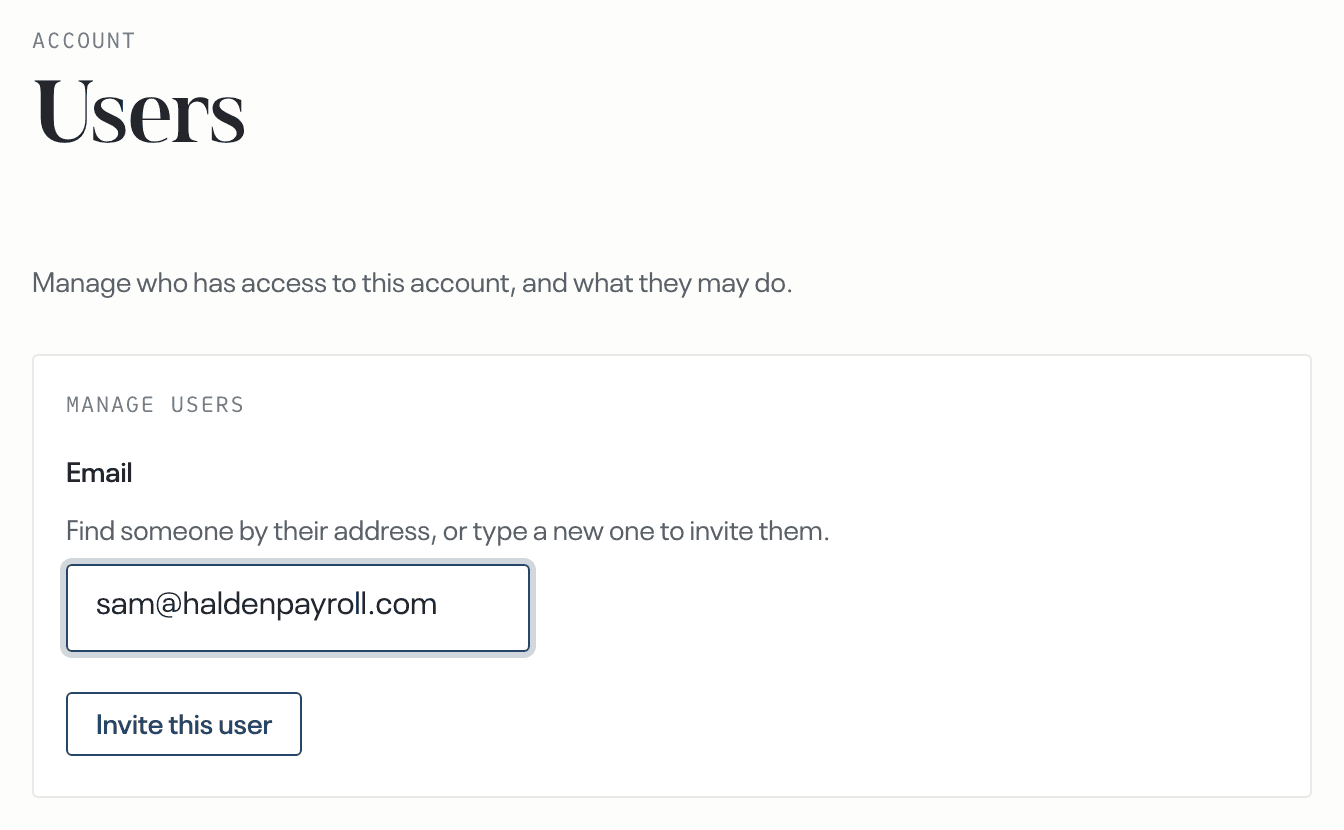
On Users, in the Account area, type the person's full email address in Email.
Select Invite this user. The role and topic choices open under it. If the address is already on the account, that person's row appears instead of the button: select the row to change what they may do.
Under Role, select the role for this person. Member is selected already.
Under Notified about these topics, select the topics whose findings and notices should reach the person. When the account has no topic yet, this choice is not shown.
Select Send invite. The person is then listed with Not accepted yet until they sign in.
Change a role
On Users, type part of the person's address in Email, then select their email address in the list. When the account has more than eight people the list stays closed until you select List all, and a search shows its matches either way. The person opens in place of the list; select Back to users to return.
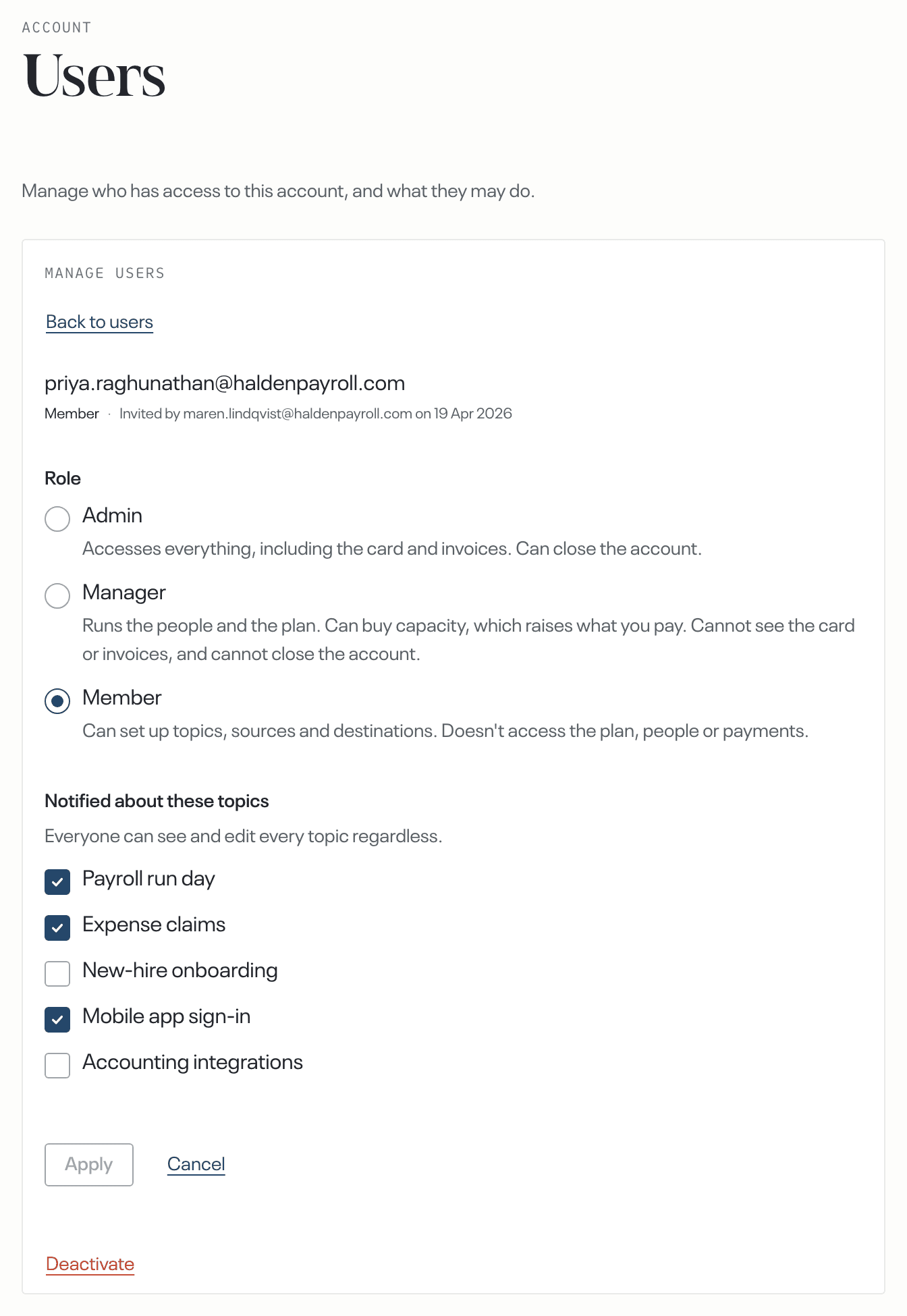
Under Role, select the new role.
Select Apply.
Deactivate someone
Select the person's email address in the list, then select Deactivate, under the role and topic controls. A manager does not see Deactivate on an admin's row, so an admin has to do it.
In the dialog, select Deactivate. The person is signed out at once, removed from every topic and receives no more email from the account. API tokens they created keep working. Their row then shows No longer has access.
Send an invite again, or restore access
For a person whose row shows Not accepted yet, select their email address, then select Send the invite again. A new link goes to the same address. Wait one minute before sending another invite to the same person.
For a person whose row shows No longer has access, select their email address, then select Restore access. They return with the role they had and a fresh sign-in link. Restoring someone who was an admin needs an admin: a manager sees Only an admin can change who is an admin. and nothing is restored. Their topics are not restored either: select the topics, then select Apply.
Inviting people and setting their roles is complete when
- each person you invited is listed on Users with the role you chose;
- the row of a person who has not used their link shows Not accepted yet.
What happens next
The invited person receives an email naming your email address and the account, with a Sign in button. The email says when the sign-in link expires; after that they enter their email address on the sign-in page and receive a fresh link.