Change the wording of a topic, and check the new wording against real feedback before you save it.
Before you start
A topic that is archived cannot be changed, and its page offers no Change this topic. To change it, select Restore this topic on its page first. That control is shown when your plan has room for another topic.
Open the topic
On Topics, select the topic. Its page shows the wording as it is saved, in four parts: What this topic covers, Examples, What to leave out and Edge cases.
Select Change this topic. The review step opens under What should echoUX listen for? The saved wording is in four fields.

Change the wording
Edit any field. What each part holds, and how to write it, is in The four parts of a topic.
Check the wording against real feedback
Select test it against real feedback when you want to see, before you save, which feedback the wording keeps and which it leaves out. The screen On topic or off topic test opens, and the test uses the four fields as they stand, including edits you have not saved.
Paste real feedback into the field, then select Test these lines. Several items can be pasted at once, and the paste is split into items for you. Each item is marked On topic, Off topic or Not assessed, usually with a reason under it. Nothing you paste is stored.
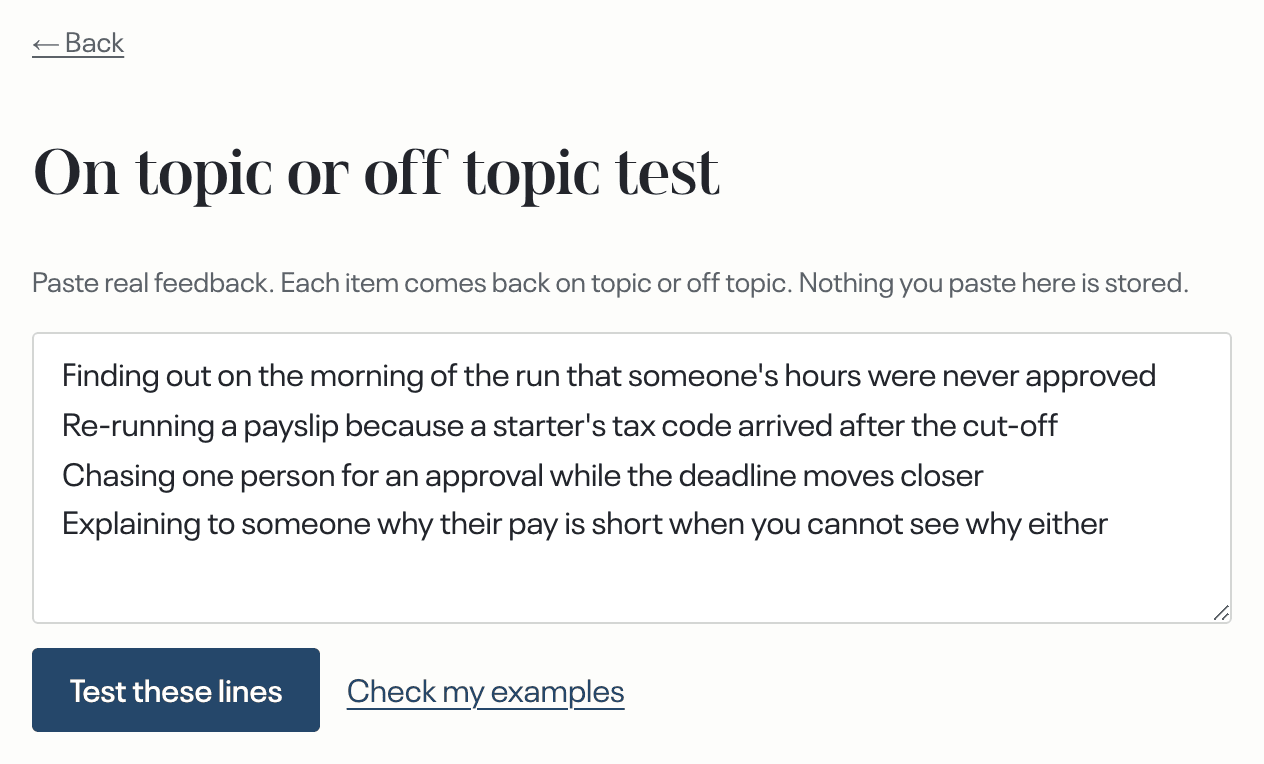
To test the examples in the wording rather than pasted feedback, select Check my examples. This replaces what you pasted with those examples. An example marked Off topic usually means that What this topic covers and Examples do not match, and tightening one of them is the fix.
Save
On the review step, select Save this topic.
When you are offered an alternative for one or more parts, a screen opens under One thing to check before we proceed:. Each item shows your Current words beside a Suggested wording, and starts on Keep current. Select Keep current or Use suggested for each item, then select Confirm and continue. When nothing is offered, the topic's page opens as soon as you save.
Sharpening a topic is complete when
- the topic's page is open again;
- the parts on the page show the wording you saved.
What happens next
The new wording is used from the next cycle. Findings already delivered stay as they are. A topic that is paused stays paused after a save, and a paused topic has no next cycle until it collects again.