Sign in again to a tool whose login has expired, so collecting and delivering start again. About two minutes when you can sign in to the tool yourself.
Start where the expired login shows. Use Sources or Destinations when the tool collects feedback or receives findings. Use the notice about the tool when it does neither and only carries notifications for other people. Use Preferences when the tool is the Slack workspace of your own notification channel.
A tool is connected to echoUX once. When one Slack workspace carries a source, a destination and your own notification channel, a single reconnect on any one route repairs the login for all of them.
Before you start
You need an account in the tool that can give echoUX access again. In Slack, some workspaces let only an admin add apps. Any role on the echoUX account may reconnect, so no echoUX permission stops you. If the tool offers to request approval, select that, then reconnect after the approval arrives. If the tool offers nothing, ask a person who has both an echoUX sign-in and permission in the tool to follow this page.
From Sources or Destinations
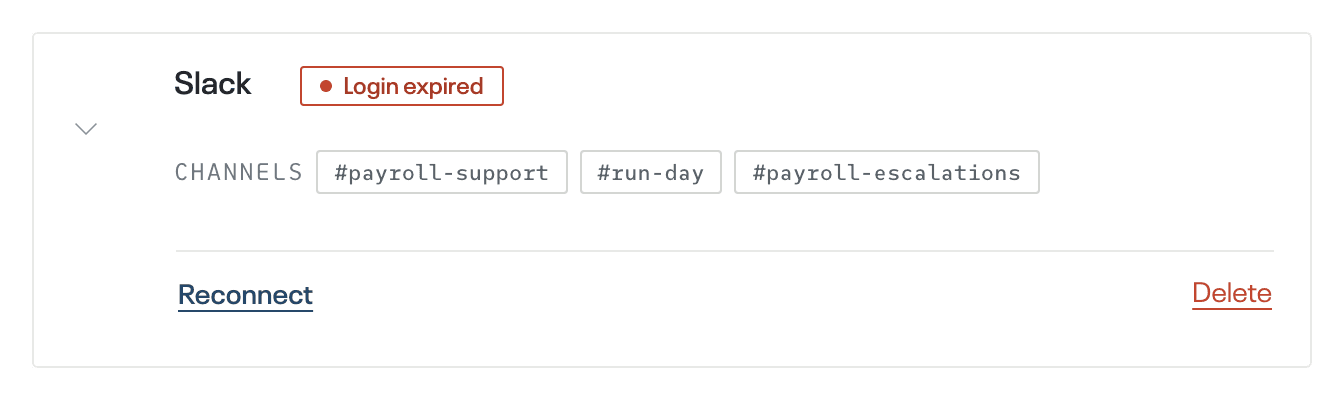
Find the row marked Login expired on Sources, or on Destinations.
Select the row to open it, then select Reconnect.
From the notice, on Connected tools
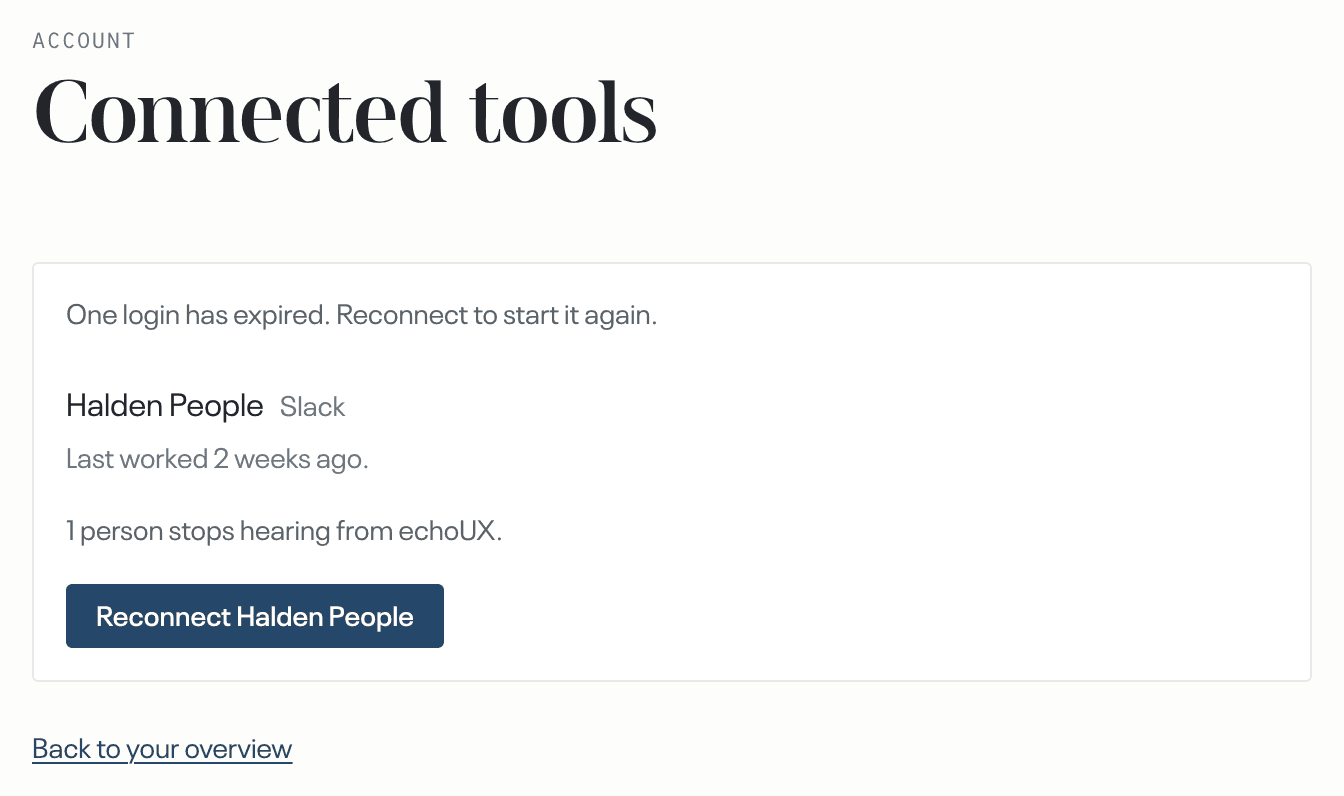
Select Review in the notice at the top of the page, or in the email about the tool. Connected tools opens, naming the tool, when the tool has no source and no destination of its own.
Select Reconnect followed by the tool's name.
From Preferences
On Preferences, under Notify me on, select Reconnect Slack.
Then sign in to the tool again, whichever route you took
A connect dialog opens over the page, and the tool's own sign-in page opens in its own window.
Check that the right workspace or account is shown, then select the control that grants access. Each tool names that control in its own words. The dialog closes when access is granted.
Reconnecting a tool is complete when
- the notice about the tool is no longer at the top of the page;
- the row on Sources or Destinations no longer carries Login expired, and Preferences no longer asks you to reconnect Slack;
- a reconnect on Connected tools opens the Overview with a message naming the tool and saying it is working again.
What happens next
Collecting from that tool starts again at the next cycle, the next pass over a batch of feedback. Feedback written while the login was expired is collected then. The channels, inboxes or projects you chose are unchanged, and so are the destinations on the same tool. Notices through a reconnected Slack workspace reach people again. Findings made while a destination on the same tool had stopped delivering are still not delivered later; the reconnect clears the state, not the gap.